
SPS sockets
Many avatars come with SPS sockets, the spots a plug lines up with. Until now, fixing one that sits wrong, renaming its menu entry, or adding one to a base that has none meant opening Unity. LAS puts every socket in the Transform panel, where you can move it, change its settings, take it off, and put it back, with the same reset arrows as everything else in the studio.
Sockets come from VRCFury. The socket itself still needs a plug on the other avatar to do anything in game, and LAS only edits the socket side.
Find your sockets
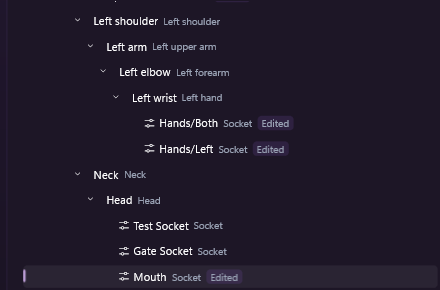
Section titled “Find your sockets”Open the Transform panel from the studio rail. Every socket shows as its own row in the bone list, under the bone it sits on, with the caption Socket. Click a row to select it, or click the small orange disc on the avatar in the viewport.
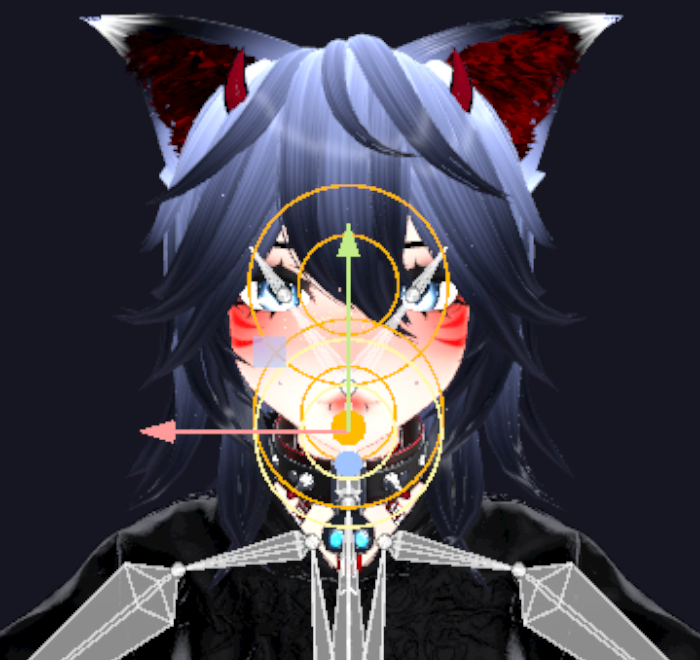
A selected socket shows two rings and an arrow in the viewport. The rings mark the socket, and the arrow points into the socket: that is the direction a plug travels. If the arrow points out of the body, or sideways, the socket is turned the wrong way.
Below the bone list, the SPS sockets section holds the socket’s settings. A socket that came with the avatar shows the note This socket came with the avatar. Your changes are kept apart from the original, so Reset to normal always brings it back.
The sockets also appear in the Abilities panel under the SPS menu folder, because each one with its menu toggle on gets an entry in your avatar’s menu.
Move a socket that sits wrong
Section titled “Move a socket that sits wrong”- Select the socket, from its row or from the disc in the viewport.
- Drag the handles in the viewport, or type into the Position and Rotation numbers under the list. Forward is the socket’s own way in, so the arrow follows every turn you make.
- Watch the arrow. When it points into the socket and the rings sit on the surface, it is placed right.
Every change applies to the avatar as you go and saves itself. The row gets an Edited chip, and Reset to normal puts the socket back exactly where it came from.
A socket has no Size. Making one bigger or smaller changes nothing in game, so the Size fields stay hidden on a socket.
Rename the menu entry
Section titled “Rename the menu entry”The name in your avatar’s menu is a socket setting, not a menu override, so the rename lives with the socket:
- Select the socket and scroll down to SPS sockets.
- Type the new name into Name in menu. A slash makes a sub-page, so
Play/Frontputs the entry on a Play page. - Menu icon sets the picture next to the entry. Choose icon… opens the same picker the Abilities panel uses, and Remove icon clears it.
The same rename is one click from Abilities: press Edit on the socket’s row, and the editor says This is an SPS socket. Its other settings are in Transform. with an Open in Transform button that lands on the socket’s row.
On a socket that came with the avatar, every changed setting shows an Edited chip next to its label, with a reset arrow that puts that one setting back.
Add a socket to a base that has none
Section titled “Add a socket to a base that has none”- In Transform, select the bone the socket should ride, such as Head or Hips.
- Press Add socket. A new row appears under the bone, already selected, named Socket 1.
- Give it a name in the Name box. This is the row’s name in LAS.
- Move it into place and turn it so the arrow points into the body, the same as moving any socket.
- Set Name in menu for the entry players see, and pick a mode.
Delete socket removes a socket you added. A socket you added lives on the bone you picked, so it moves with the body the way a shipped one does.
Switch one off
Section titled “Switch one off”There are three ways to turn a socket down, from lightest to strongest:
- Menu toggle off keeps the socket but drops it from your avatar’s menu. The row leaves the Abilities list, and the way back is the same switch in Transform.
- Deformation off keeps the socket and its menu entry, but a plug no longer bends into it.
- Remove socket takes a shipped socket off the avatar entirely. The row stays in the list with a Removed chip and the note This socket is off the avatar. Bring back restores it exactly as it came. Bring back puts it back with everything it had, including the parts LAS never edits.
The settings
Section titled “The settings”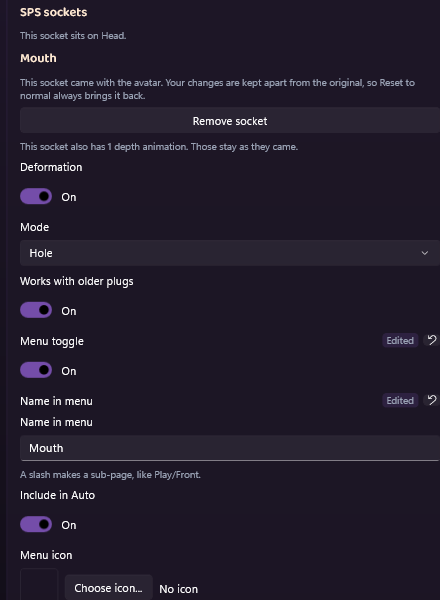
| Setting | What it does |
|---|---|
| Deformation | Whether the socket deforms the mesh when a plug enters. |
| Mode | Auto picks between Hole and Ring from where the socket sits and what it is called, and the line under the box says which one Auto chose here. Pick one yourself when the guess is wrong. One-way ring lets a plug pass through in one direction only. |
| Works with older plugs | Keeps the socket visible to plugs made before SPS. Leave it on unless you know every plug you meet is current. |
| Menu toggle | Whether the socket gets an entry in your avatar’s menu. |
| Name in menu | The entry’s name. A slash makes a sub-page. |
| Include in Auto | Whether the socket takes part when a plug is set to find the nearest socket on its own. |
| Menu icon | The picture next to the entry. |
Renaming a socket can change what Auto picks, because Auto reads the name. Check the line under the Mode box after a rename.
What stays as it came
Section titled “What stays as it came”Some sockets carry extra work from their creator: animations that react to how deep a plug goes, animations that play while the socket is active, tags, and guided paths. LAS leaves all of that exactly as it came, and the panel says so under the socket’s title, for example This socket also has 1 depth animation. Those stay as they came. Remove socket and Bring back carry those along too.
Check it in game
Section titled “Check it in game”Try it builds the avatar the same way an upload does, so the menu shows the renamed entry with its icon, and a removed socket is gone. See Test it for the walk.